
Air Force Command HQ 3.0 Setup and Controls
Prepare your Air Force Command HQ 3.0 for first use, check its power requirements, identify the staircase control and confirm phone charging.
Written by
Desk Chargers Team
Product notes and buying guides from Desk Chargers.

Air Force Command HQ 3.0 arrives assembled. Before first use, confirm the power accessories for your exact unit, choose a stable location and check your phone's wireless-charging support. Its staircase control switches between four named modes; the phone's own charging indication is the check to use when placing a phone on the platform.
Use this first-use checklist alongside the instructions supplied with your unit. It summarizes the documented features and identifies the details to resolve before connection, rather than guessing a replacement power specification or an undocumented button sequence.
Check the unit and package before connecting power
Unpack the charger with enough clear space to see the base, controls and exposed radar details. Keep the packaging until you have checked the contents and exterior. If a part or cable appears damaged, stop and contact support before using it.
Confirm that you have the 3.0 model shown in the current product listing. Decorative aircraft appear in the gallery, but their appearance does not establish inclusion in every package. Adapter and cable inclusion also need to be confirmed for your order.
The model's listed dimensions are 9.7 cm wide, 14.8 cm deep and 11.7 cm high. Leave room around the base to place and lift the phone and reach the staircase control. Keep the radar clear of nearby monitor edges, shelves and other objects.
Resolve the power specification first
The published input is 12V DC. This is one part of the supply specification, not enough information to select an arbitrary adapter. Use the matching manufacturer-supplied or confirmed power accessories for your unit.
If you do not have a confirmed matching supply, ask support for the required current capability, connector and polarity before connecting anything. Do not infer those details from a similar product or assume that another desk accessory's adapter is suitable. The power-adapter checklist explains what information to collect.
Once the supply has been confirmed, follow the supplied connection instructions. Keep the cable route clear so that picking up your phone does not pull the model toward the edge of the desk.
Identify the controls and effects
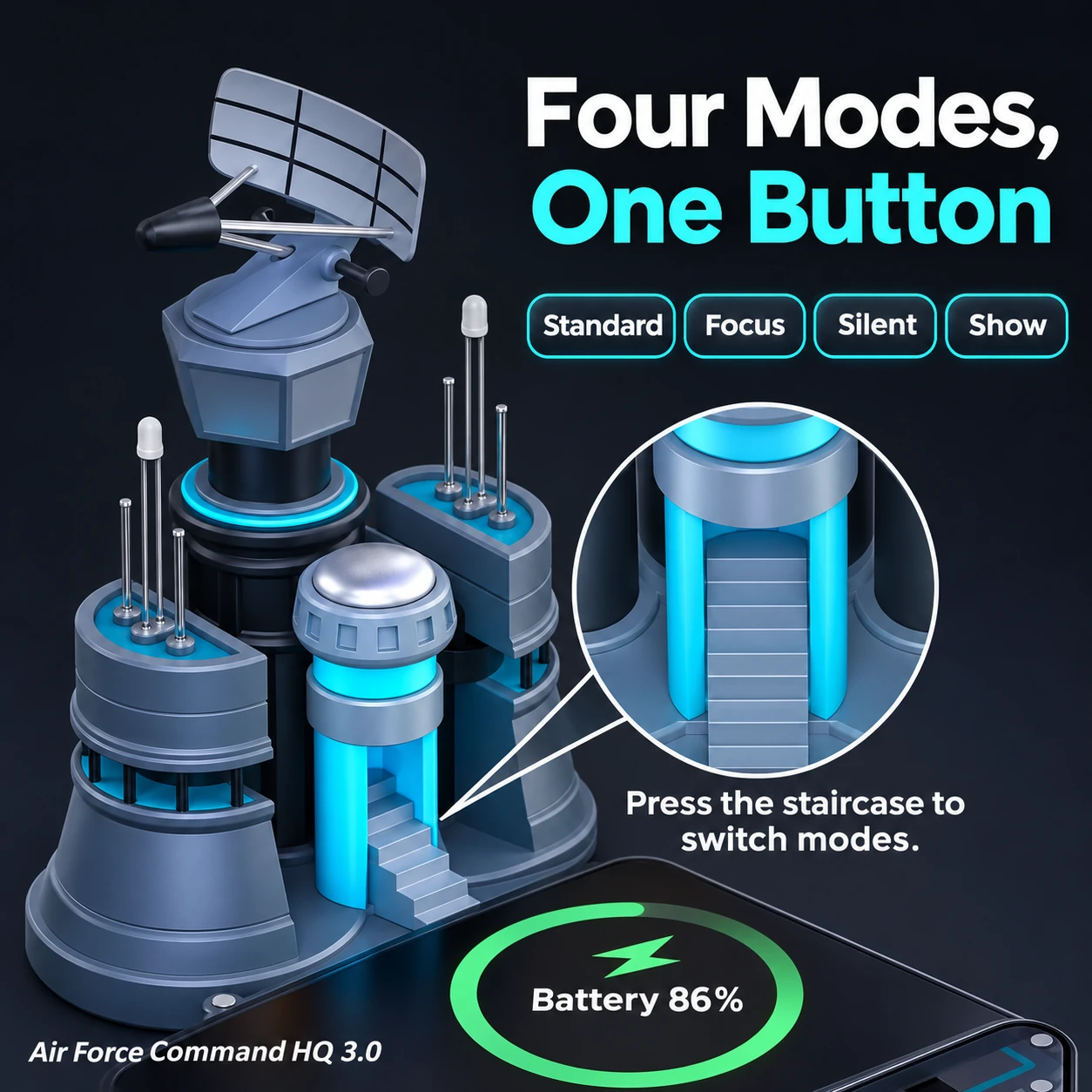
Product gallery illustration: the staircase is the mode control. The illustrated phone display is not a charging-speed measurement.
| Feature | Documented behavior |
|---|---|
| Staircase control | Press to switch modes |
| Modes | Standard, Focus, Silent and Show |
| RGB lighting | Different colors and flashing patterns provide visual effects |
| Interactive sound | Cues for power-on, phone placement, phone removal and button presses |
| Radar | Rotates, with adjustable rotation speed |
Follow the supplied instructions for the detailed behavior of each mode and for adjusting radar speed. The mode names do not establish which individual effects stop, the order of every control action, or whether settings persist after power is removed. If a quiet or non-moving setting is important to you, confirm the exact behavior with support. Audio language is not specified in the published listing.
Confirm the phone connection
Check the exact phone model's specifications and follow its case and accessory guidance. Place the phone on the charging platform as shown in the supplied instructions, then check the phone's charging indication. Sound or lighting effects alone are not a measurement of charging power.
Alignment and accessories can affect a wireless connection. Samsung's support guidance directs users to the contact point for their specific device and discusses obstructing accessories; it does not certify compatibility between this charger and every Galaxy phone. Samsung wireless-charging guidance
If charging does not start or repeatedly stops, use our charging troubleshooting guide. Record the phone model, case, power-accessory information and what happens when you place the phone. Send those details through Customer Help, and do not open the unit or attempt electrical repairs.
Questions or corrections about this content can be sent to support@deskchargers.com.
All postsRelated posts
Desktop wireless charger comparisons, setup questions, and buying guides.